Help Center
CUSTOMER
1. Register an Account
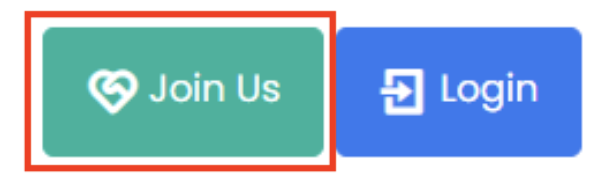
- Click the “Join Us” button on the website.
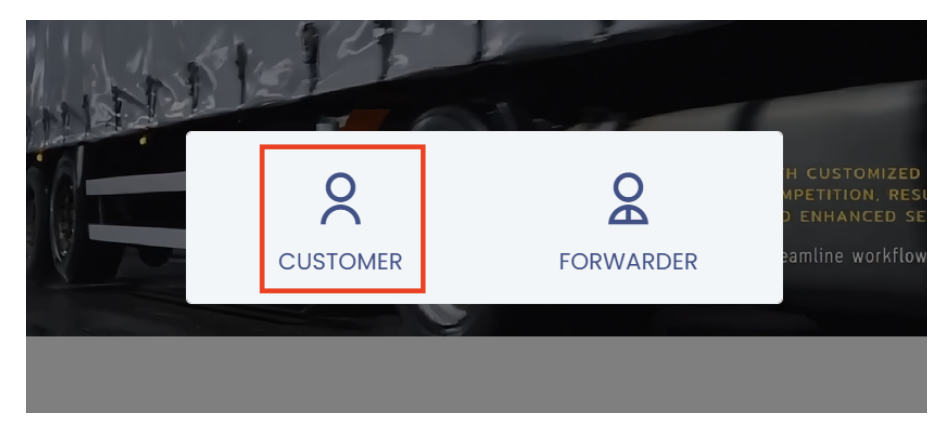
- Select “Customer” during registration.
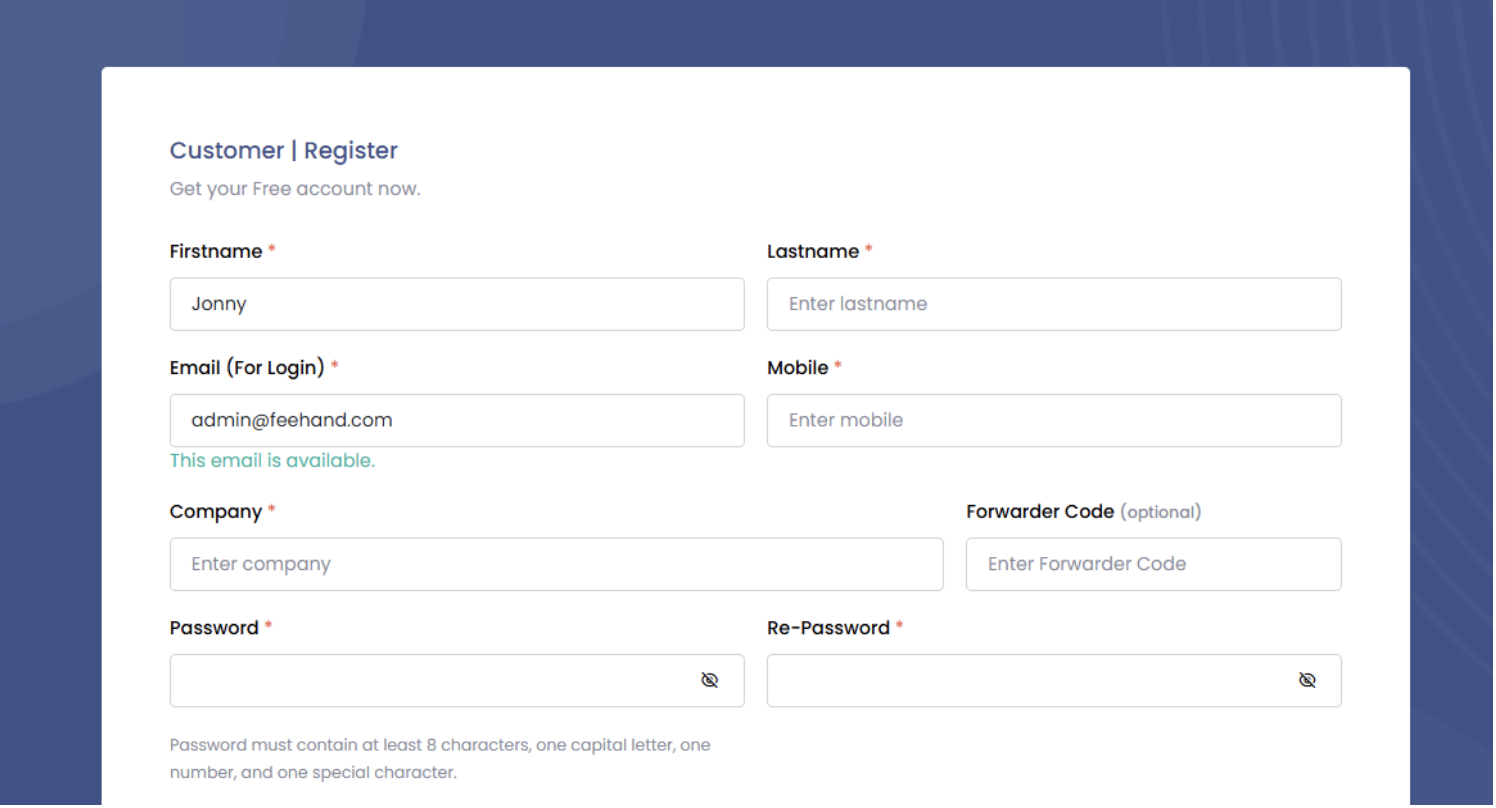
- Fill in your details: full name, email, phone number, and create a password.
- If referred by an existing member, enter the “Forwarder Code” in the designated field to receive additional personalized assistance.
- Complete the registration and check the confirmation email from the system.
2. Log In
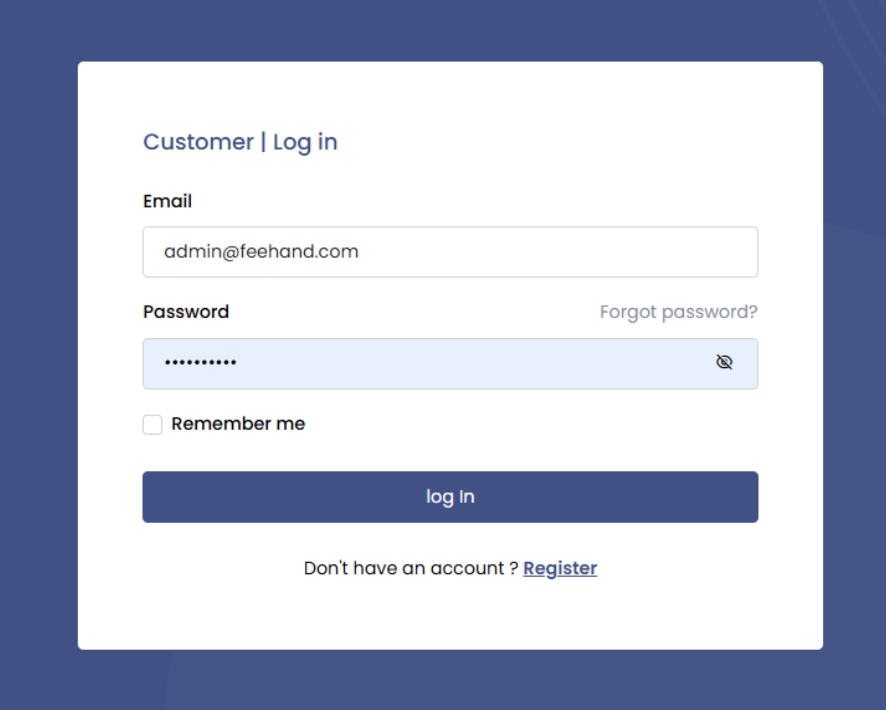
- Click the “Log In” button.
- Enter your email and password.
- Access your personal dashboard.
3. Verify Your Profile
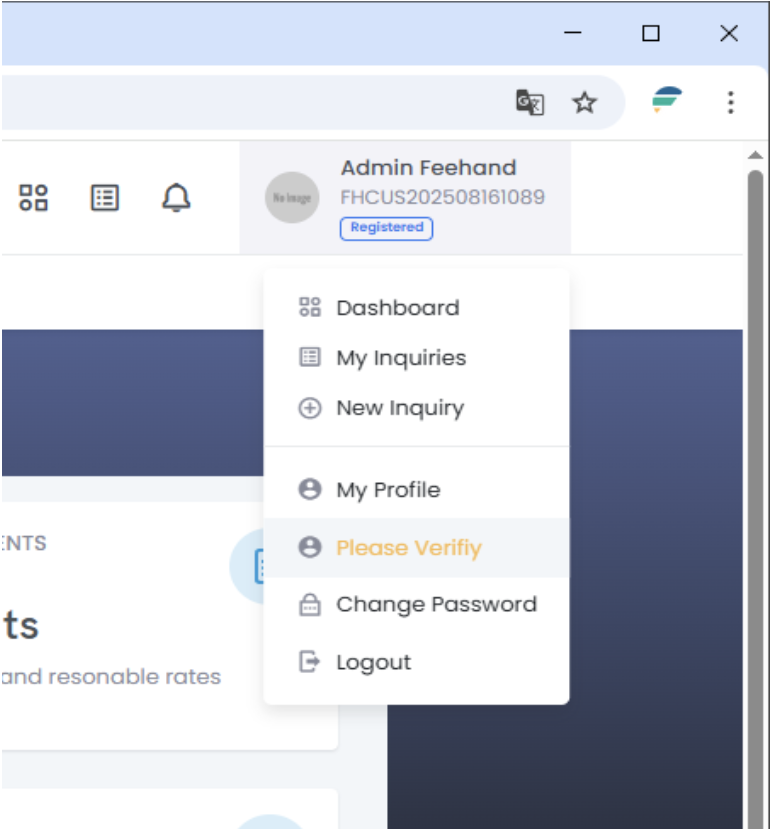
- Go to “My Profile” at the top-right corner.
- Select the “Please Verify” option.
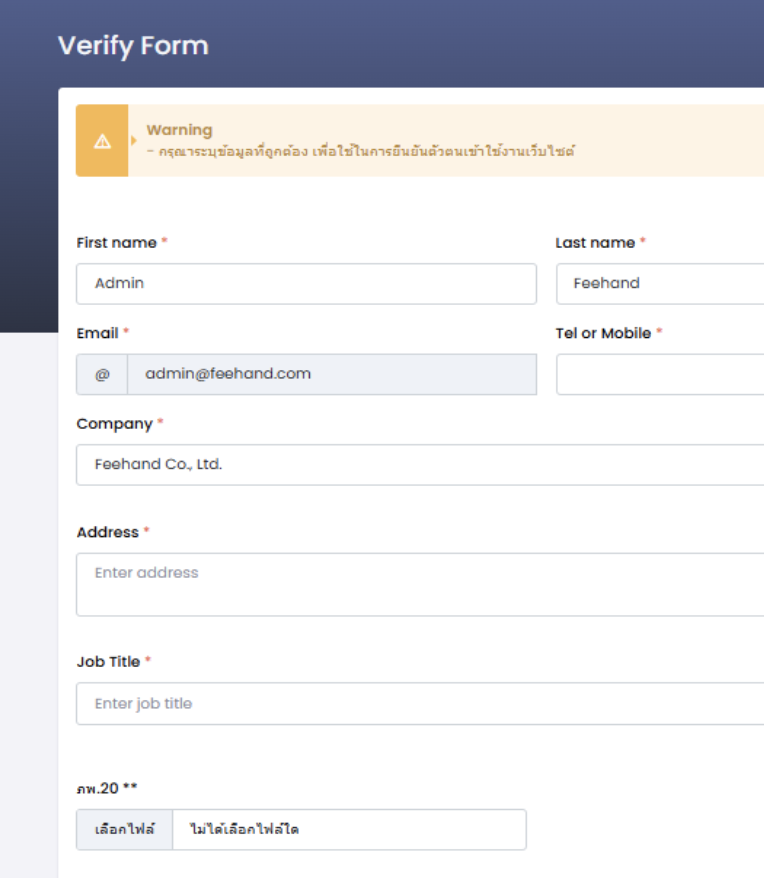
Review and complete the required details:
- Company address for receiving or dispatching goods
- User role/position
- Upload verification documents, such as VAT registration certificate or company registration certificate
- Review and save your information to ensure service providers can prepare accurate quotations.
- Wait for administrator verification, and check the results via your dashboard and email.
4. Create a Shipment Request
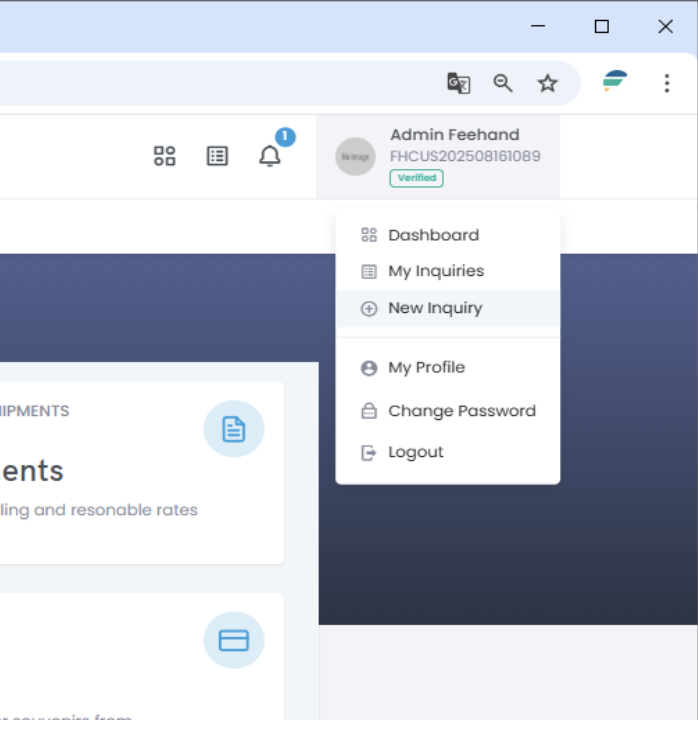
- Select “New Inquiry” at the top-right corner.
- Choose mode of transport (LCL, FCL, AIR)
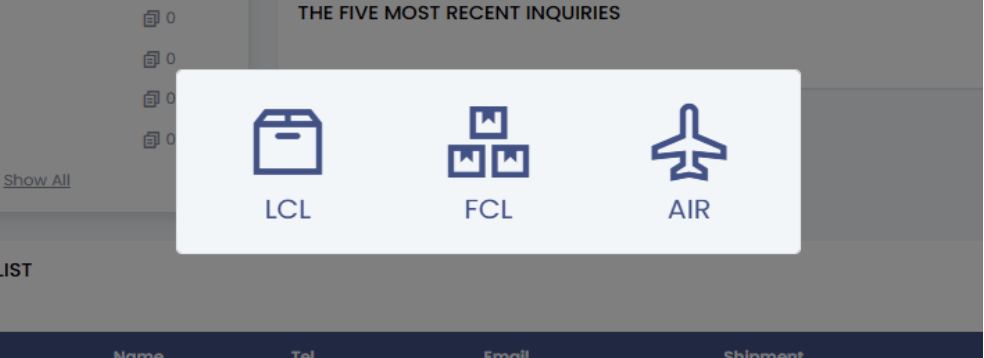
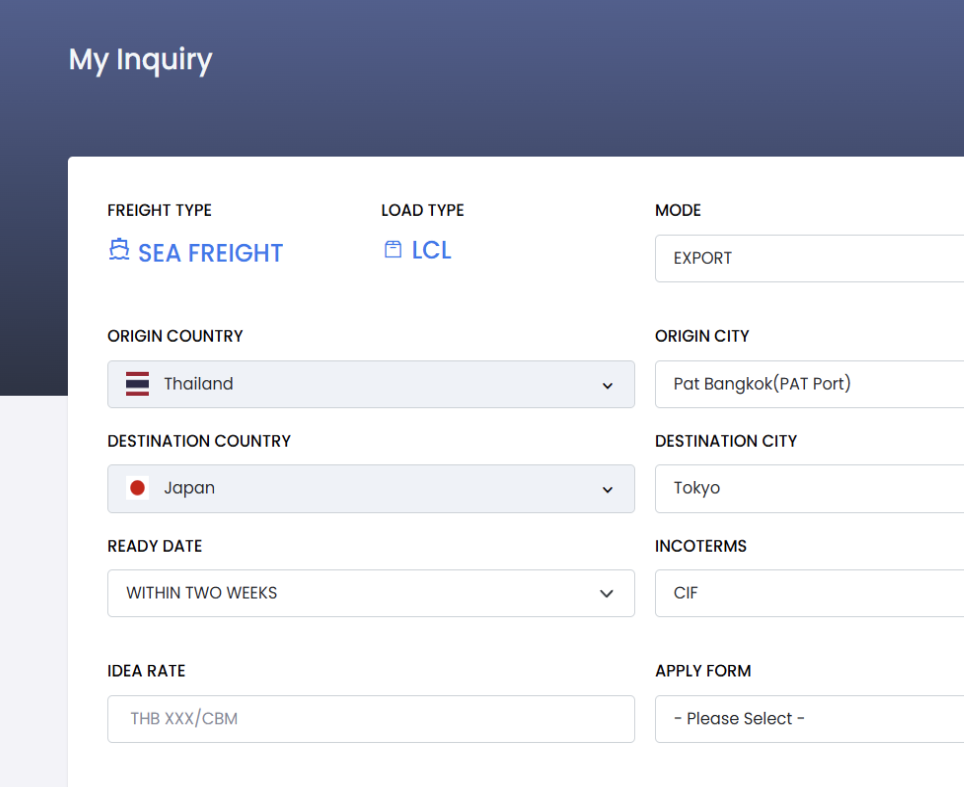
Fill in shipment details:
- Service type (Import / Export)
- Shipping route (Origin – Destination)
- Ready Date (Please enter the ready date for pickup.)
- Incoterms (e.g., CIF, FOB, EX-W)
- Idea Rate (Submit Your Target Rate)
- Apply Form
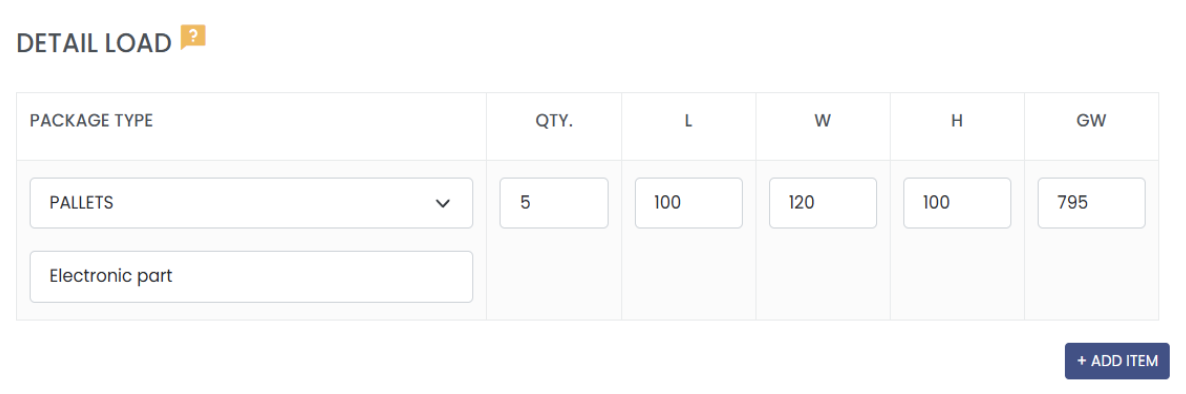
- Details Load (type, weight, volume)
- G.W. (Gross Weight) is the total weight of all goods in that package type.
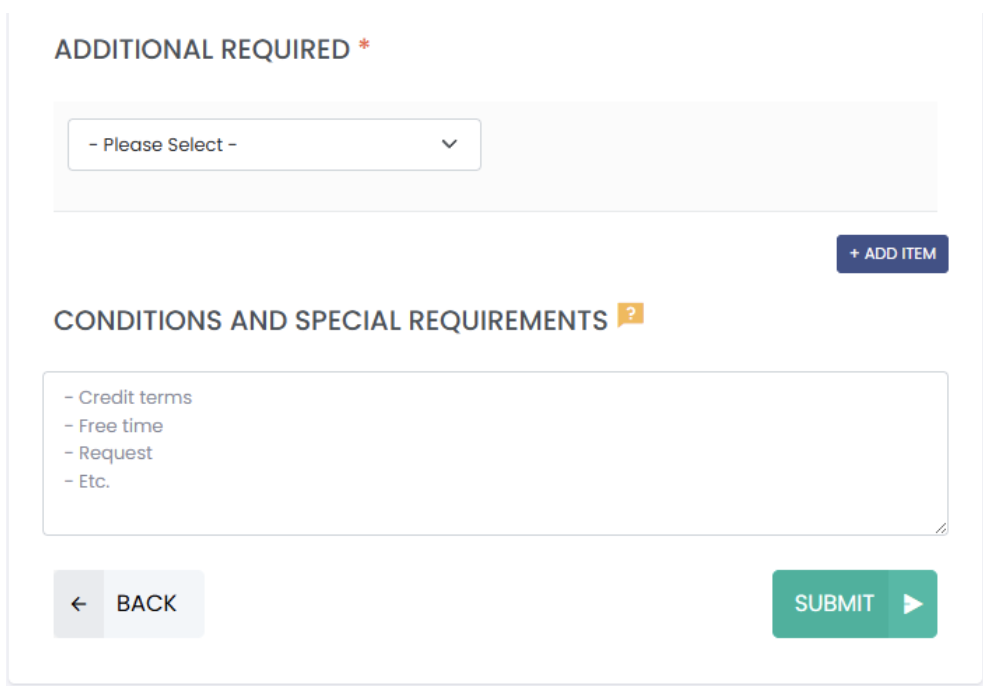
- Additional Required (Special requirements or conditions, such as credit terms or additional instructions for the provider.)
- Click “Submit Request” to save and forward the request to the system.
*** This information ensures that service providers can prepare an accurate quotation and meet your specific needs.
5. Compare Quotes
- When service providers submit their quotes, the system will notify you via dashboard and email.
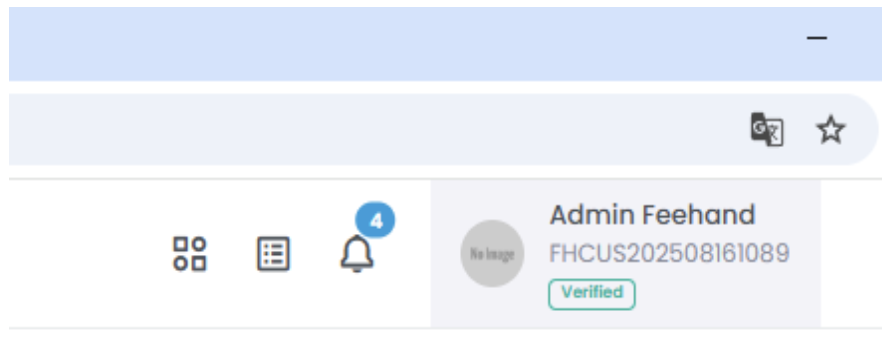
- Review price details, terms, and timelines in the Dashboard or My Inquiry section.
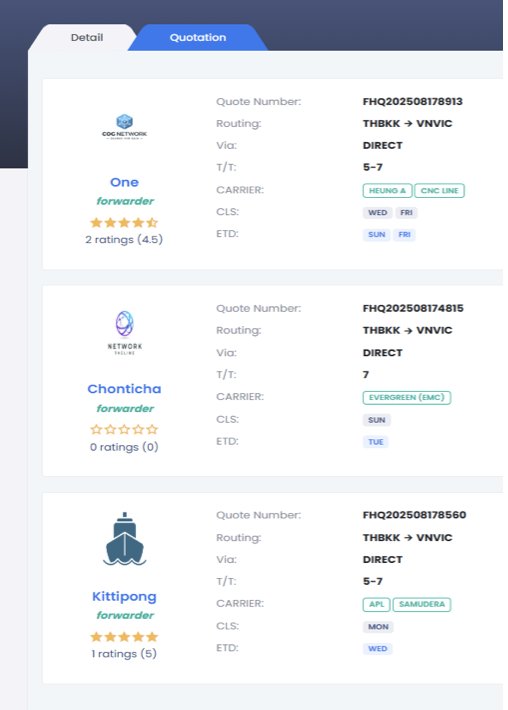
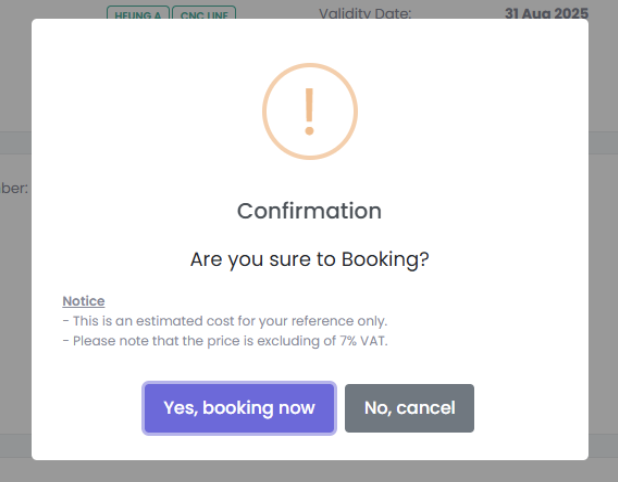
- Select the most suitable provider and click “Booking”.
6. Customer–Forwarder Connection
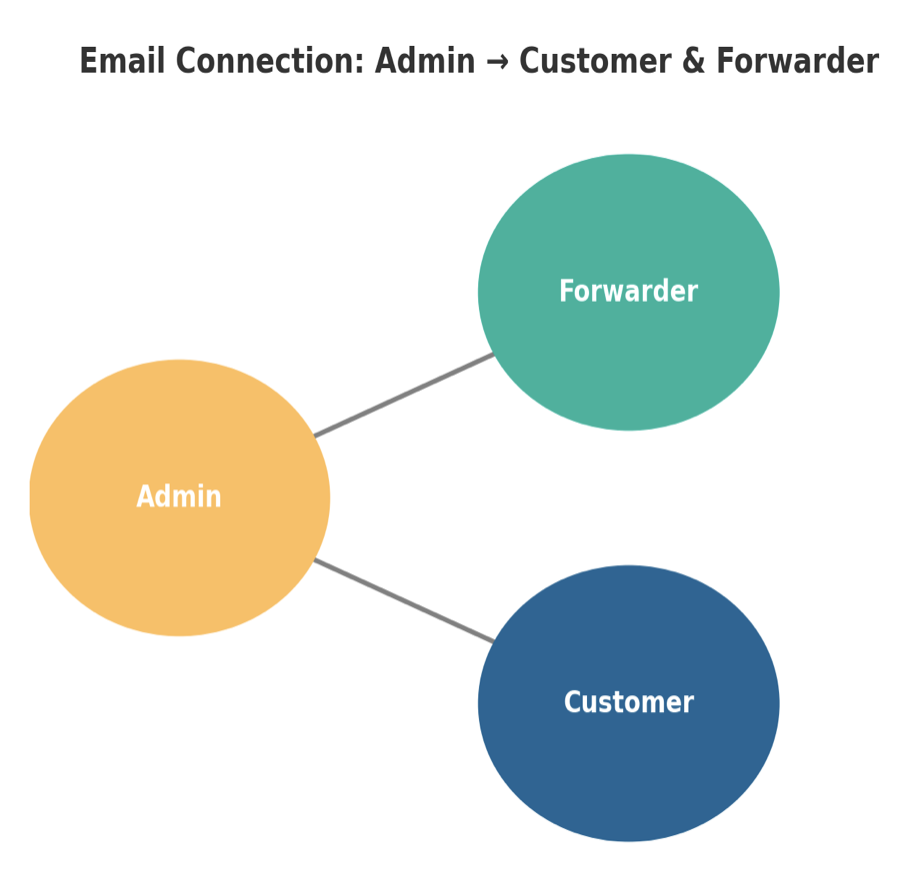
- The system will send basic details of both the customer and the selected service provider to each party via email
- The administrator will remain in the email loop to monitor shipment status and provide assistance in case of any issues.
7. Shipment Execution
- Deliver your goods to the selected import/export service provider
- Monitor shipment progress through updates provided by the service provider, with the administrator monitoring the email loop for assistance when needed.
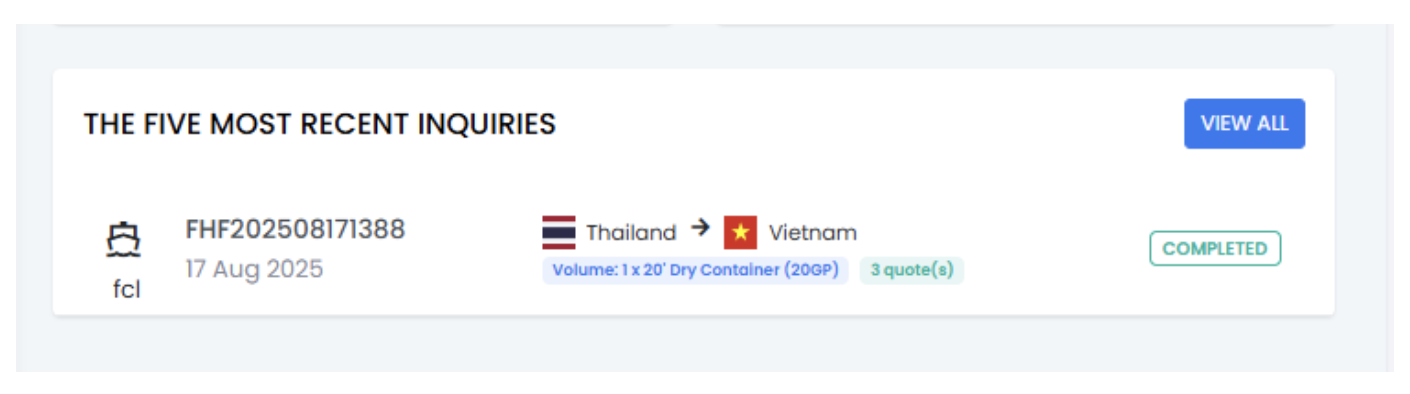
- Once the goods depart from the origin port, the system will automatically update the status to “Completed”.

8. Rate & Review
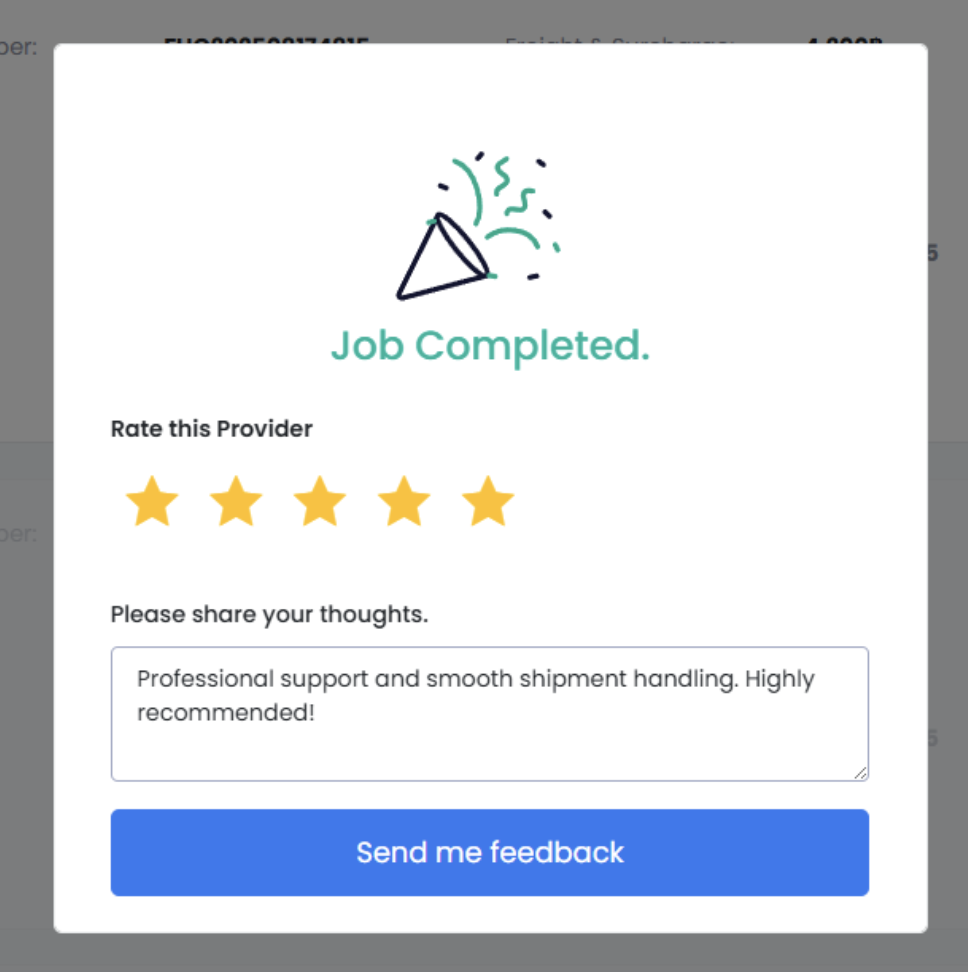
- Rate the service from 1–5 stars and write a review to contribute to the import/export community in Thailand.
- Reviews help build trust and provide valuable references for other users on the platform.