Help Center
PROVIDER
1. Register an Account
- Click the “Join Us” button on the website.
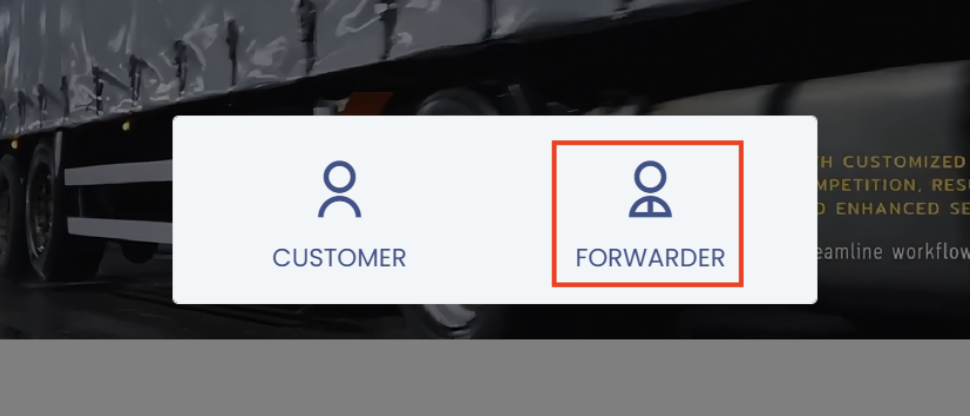
- Select "Forwarder" during registration.
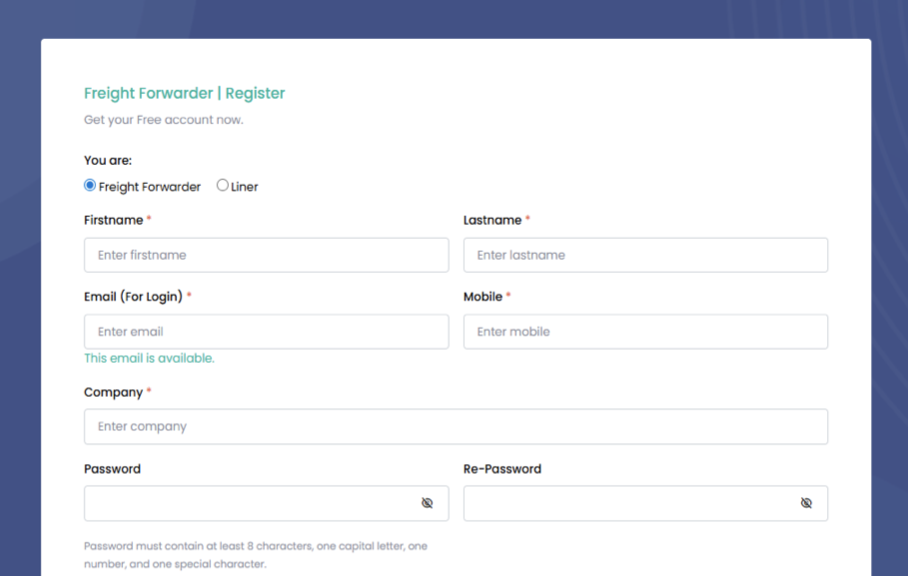
- Select your role: Forwarder or Liner.
- Fill in your details: full name, email, phone number, and create a password.
- Complete the registration and check the confirmation email from the system.
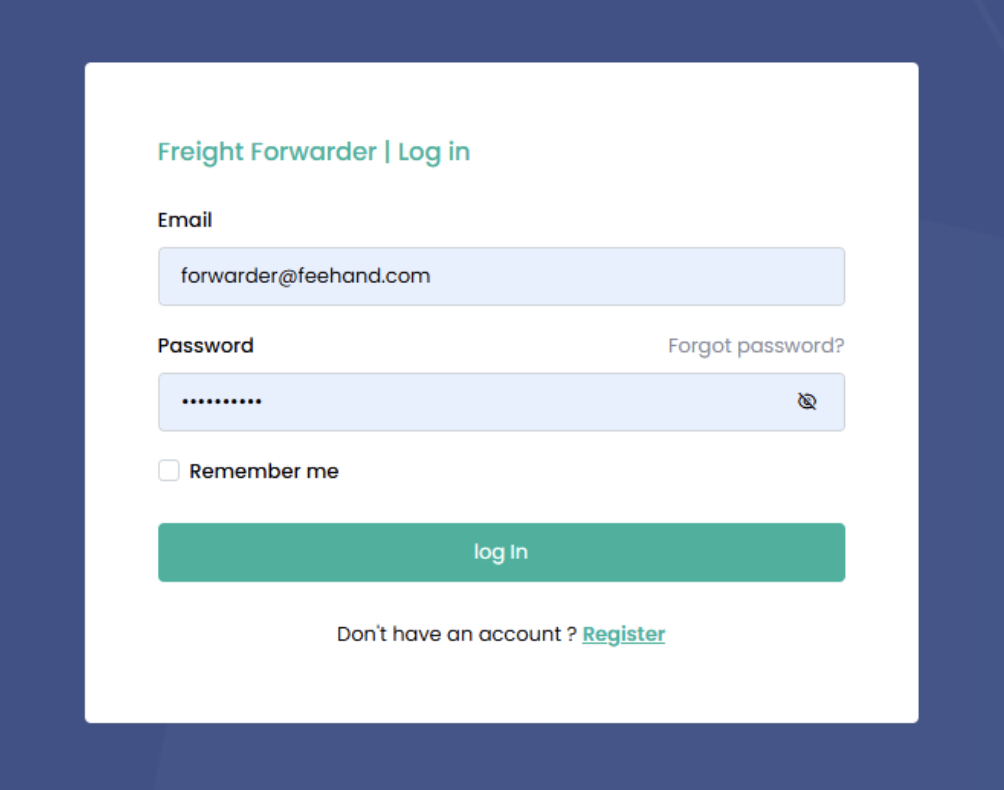
2. Login
- Click the “Log In” button
- Enter your email and password.
- Access the service provider dashboard.
3. Affiliate Program
- Go to your Dashboard and copy your Affiliate Link to invite customers.
- You can share the link immediately, even before completing profile verification.

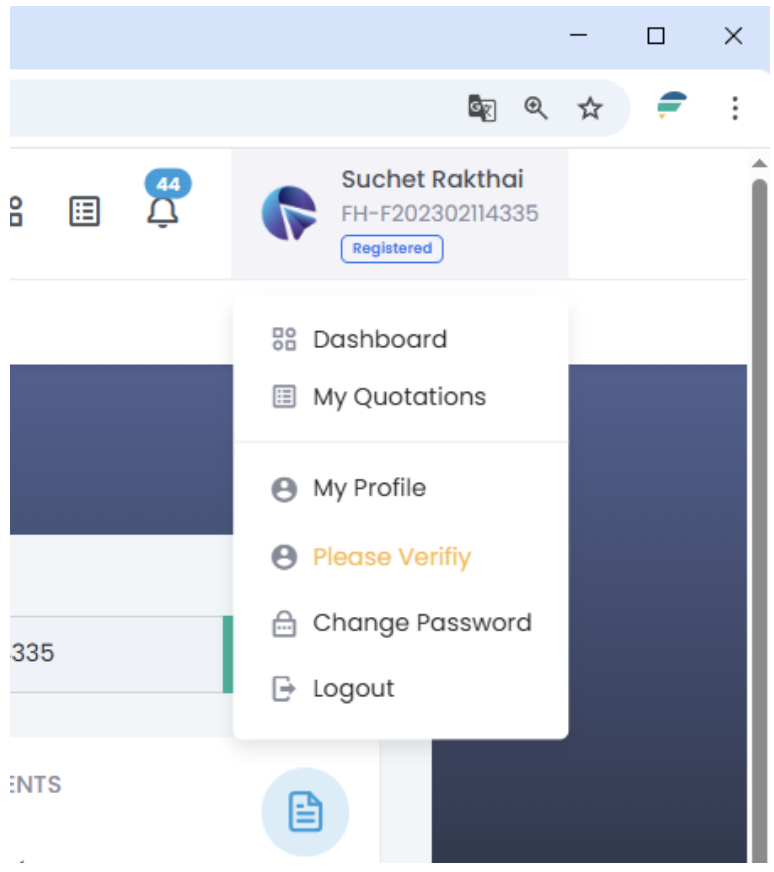
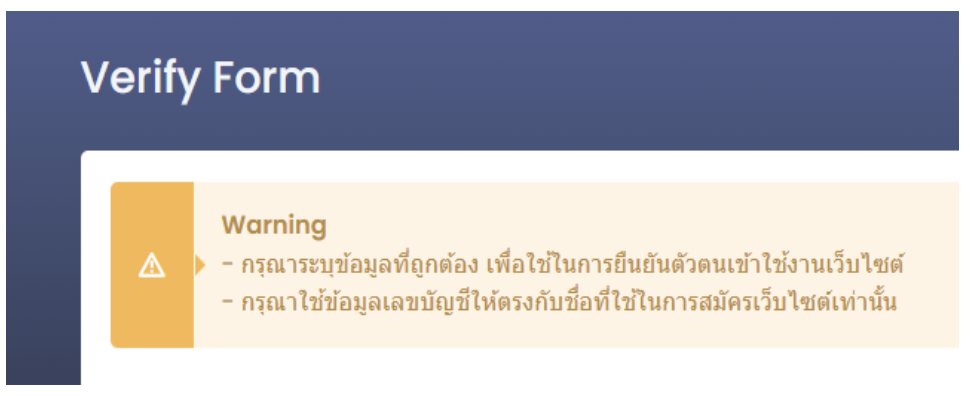
4. Profile Verification
- Go to “My Profile” at the top-right corner.
- Select the “Please Verify” option.
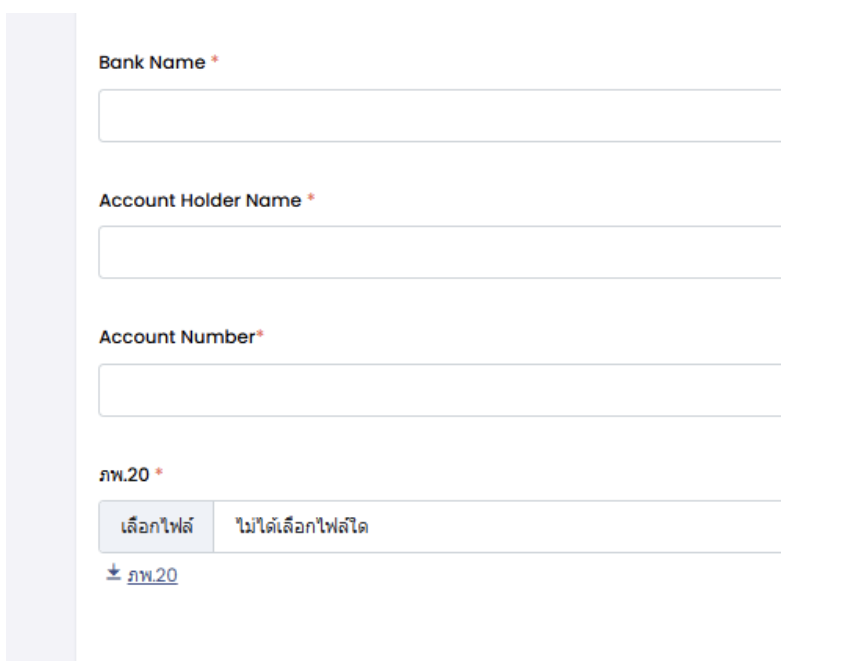
Fill in company and personal details:
- Company name, address, position
- Bank account for receiving commission (If referring customers)
Upload required documents such as:
- VAT Registration Certificate
- Company Certificate
- Customs Broker License (if any)
- Review and save the information
- Wait for administrator verification and check the results via your dashboard and email.
5. View Shipment Requests
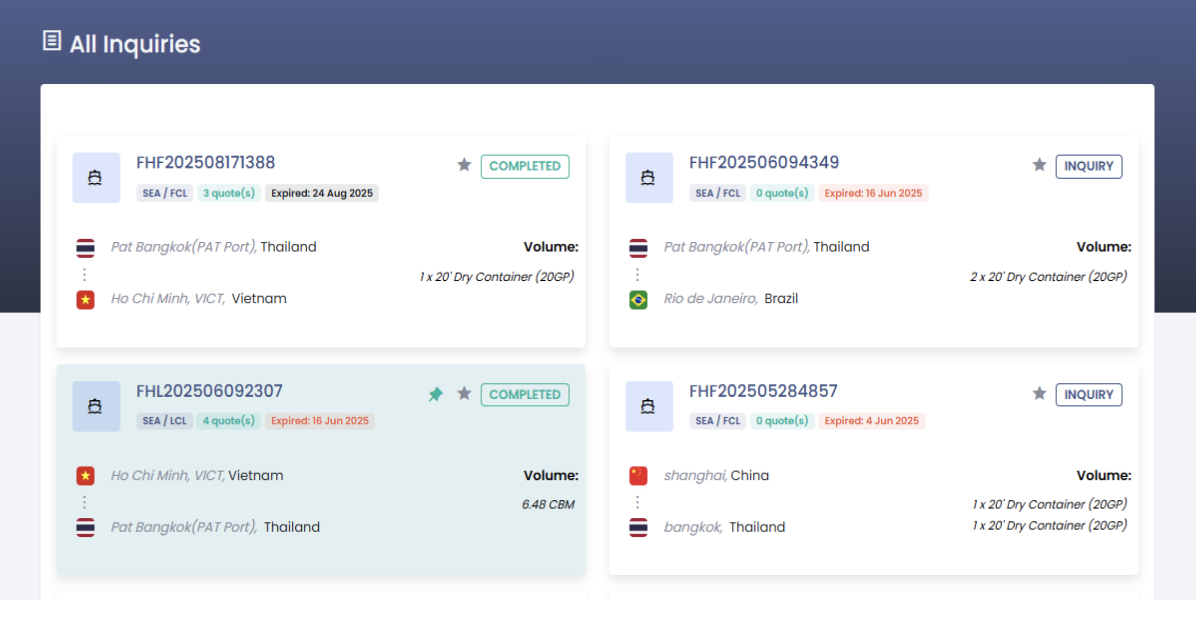
-When a customer submits a quotation request, the system will notify via email and the “ALL INQUIRY” page
"Once a quotation has been submitted, the background will be highlighted in green."
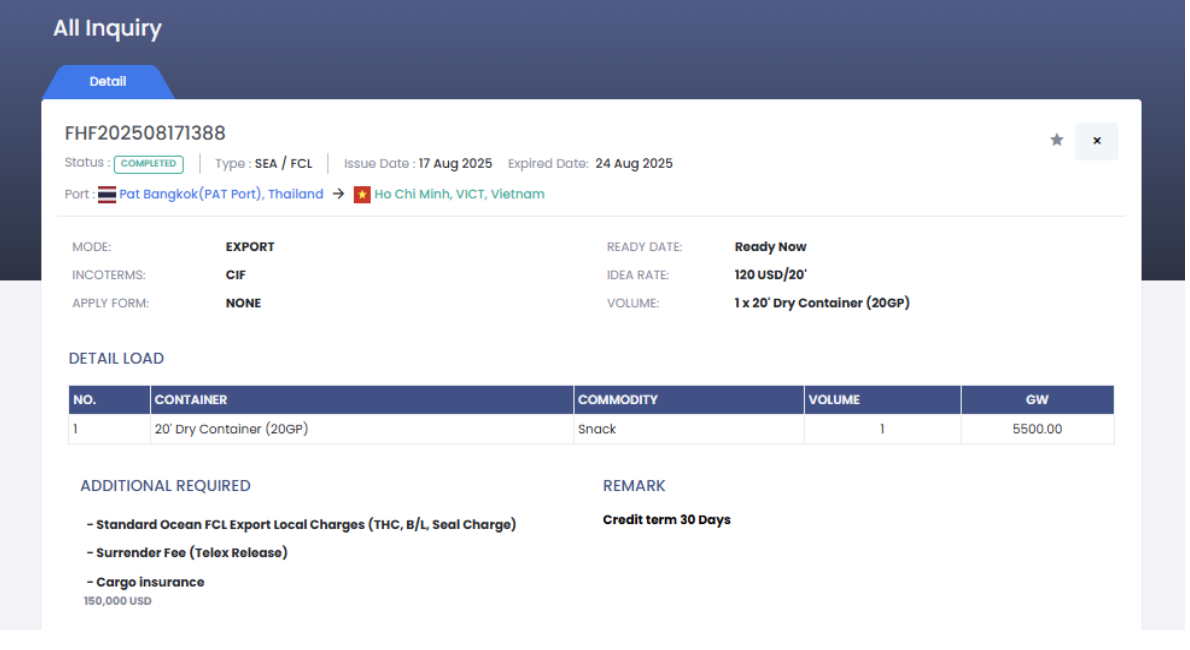
Review request details such as:
- Job type (Import / Export)
- Transport mode (LCL, FCL, AIR)
- Transport route
- Cargo details and special requirements
6. Submit Quote
- Analyze costs and profit margin based on the customer’s requirements
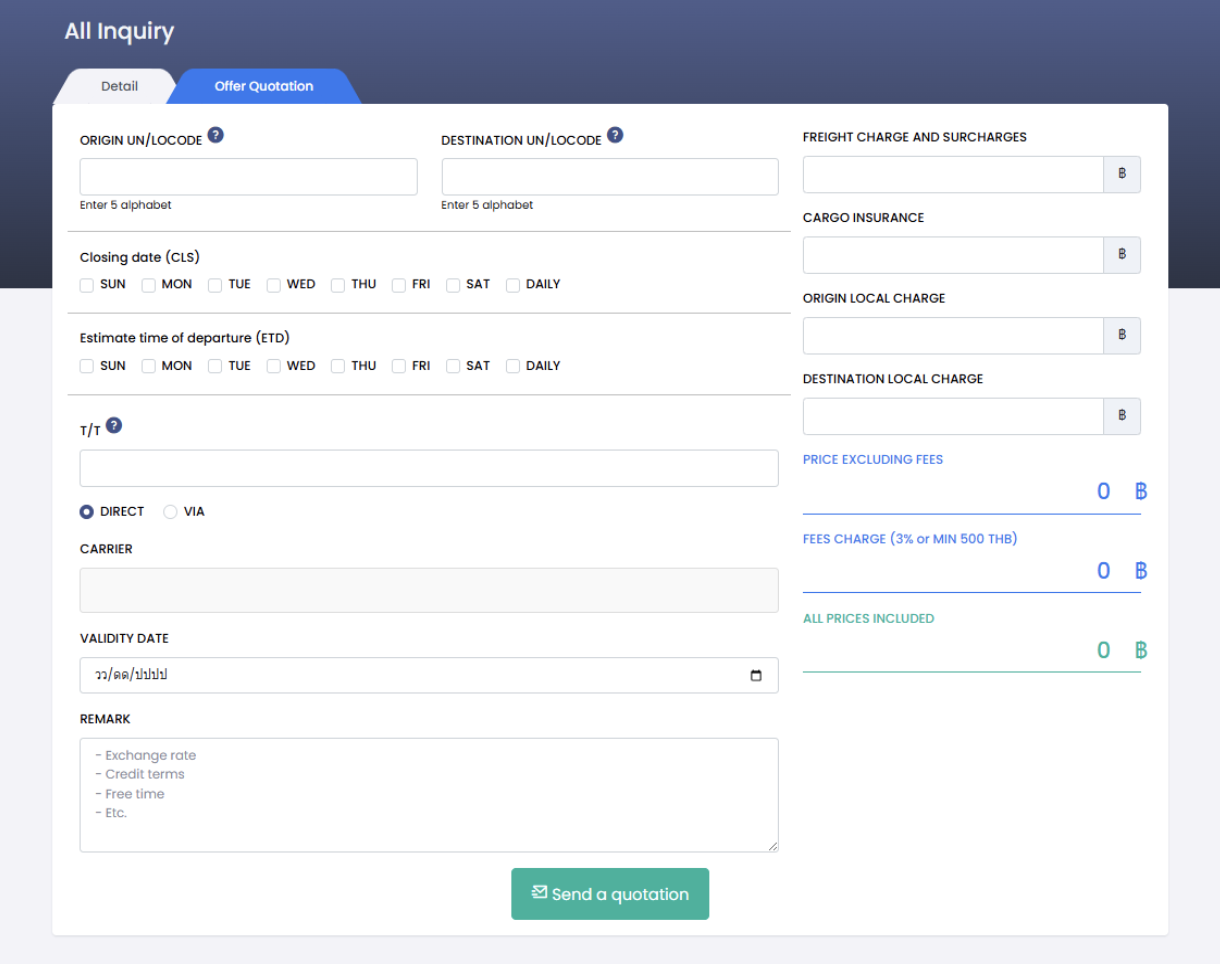
- Fill in quote details in the system, including:
- Origin port, destination port
- Transit time, departure date, carrier
- Freight charges, surcharges
- Cargo insurance cost
- Origin and destination charges
- Service terms (e.g., credit term, additional services)
- The system will notify the service fee (3% or minimum 500 THB) for confirmation before submission and display the final net price (All Prices Included)
- The system will display your quote ranking in “My Inquiry”
- Quote revisions are allowed once after the submission
- Click “Send a quotation” to send to the customer
7. Await Customer Confirmation
- When the customer selects a forwarder, the system will notify via dashboard and email
- The administrator will confirm price and sailing/flight schedule
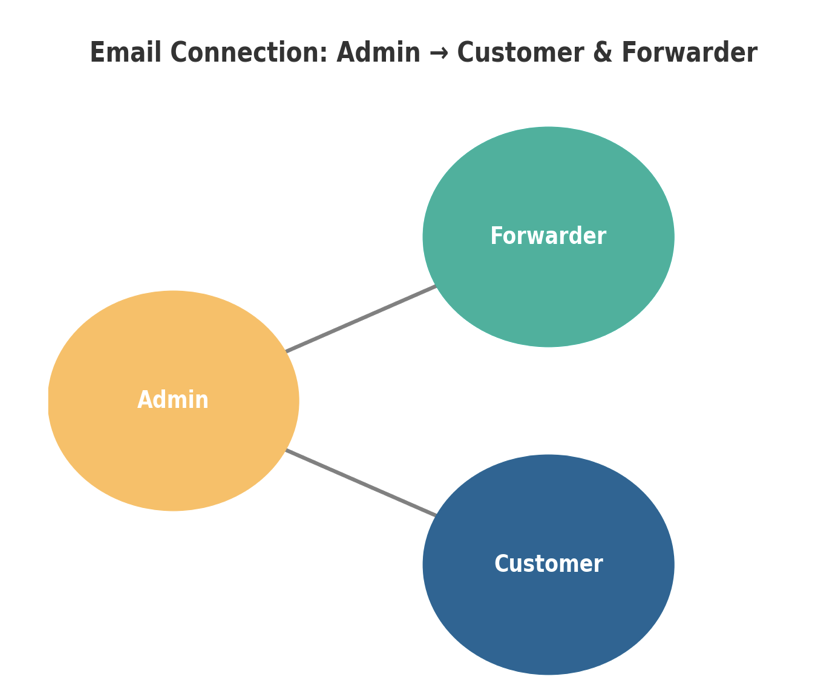
- The administrator will connect both parties via email for shipment coordination
- The administrator will be included in the email communication loop to monitor the progress of the shipment and provide assistance if any issues arise.
8. Shipment Execution
- Receive the goods from the customer and execute the shipment as agreed
- Update shipment status to the customer and administrator, such as vessel departure date and ETA at destination port

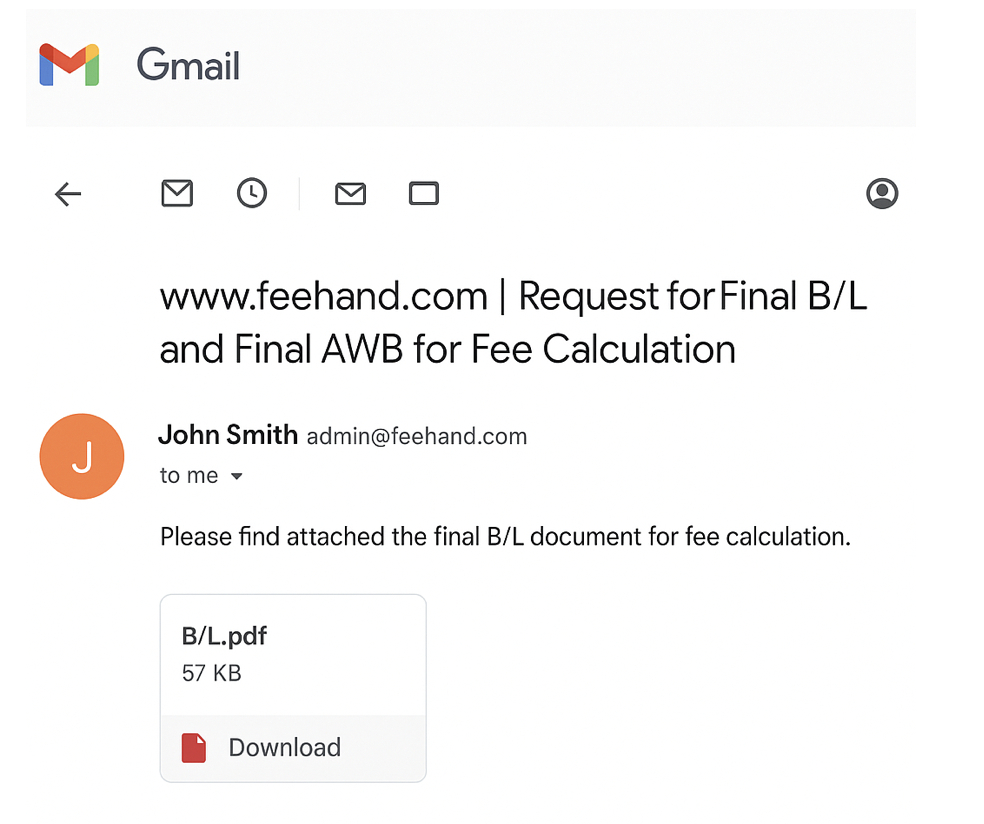
- Upon departure from the port of origin, the forwarder must immediately send the relevant shipping documents to the platform for record-keeping and service fee calculation, such as B/L, AWB, or other required documents
- Delivering the original documents to the customer is the forwarder’s sole responsibility and must be completed within the agreed timeframe in the service contract
9. Completion
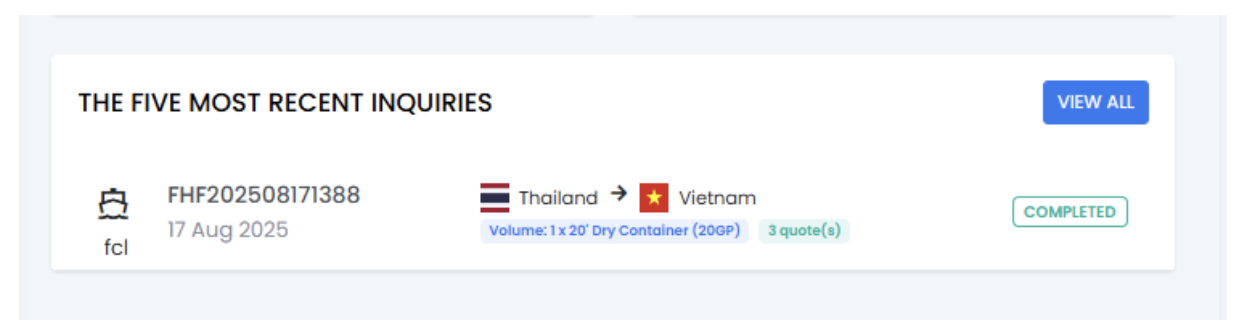
- Once the goods depart from the port of origin, the system will automatically mark the job as “Completed”
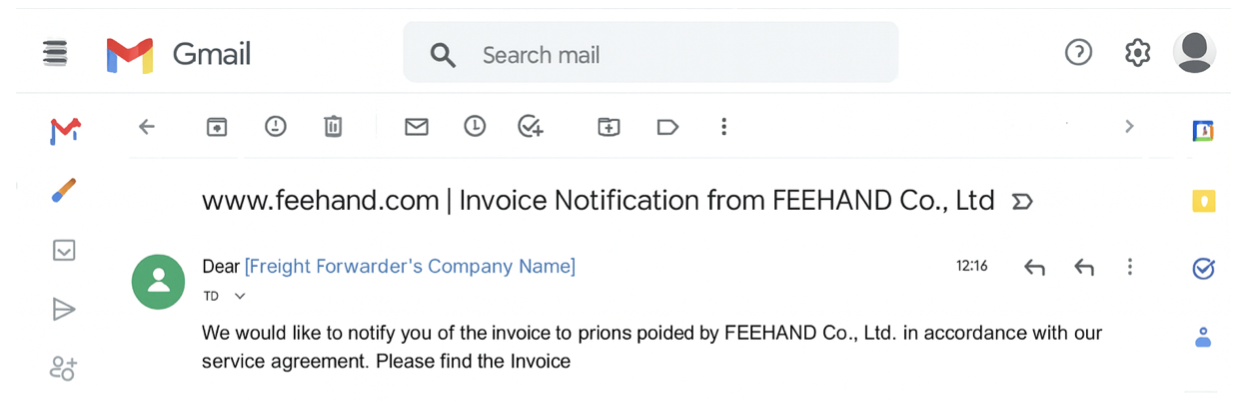
- Admin will issue and send closing documents such as invoices, receipts, or tax invoices (if applicable) follows the platform’s terms and conditions
10. Receive Ratings & Reviews
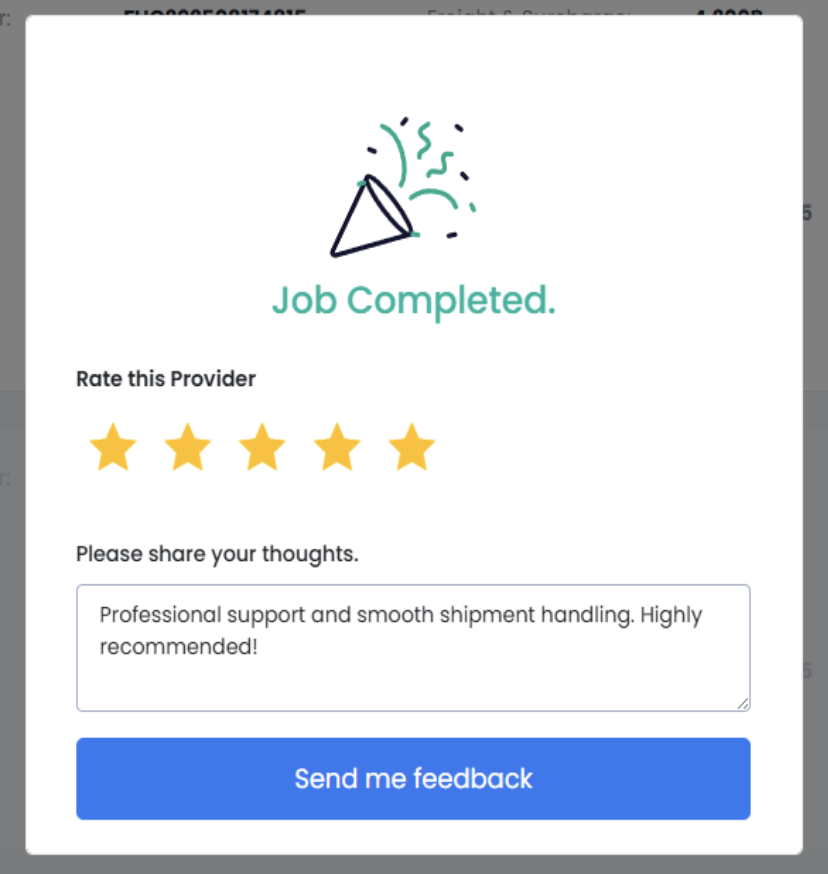
- Customers can rate 1–5 stars and leave a review.
- Positive reviews help build credibility and increase chances of new business
11. Commission
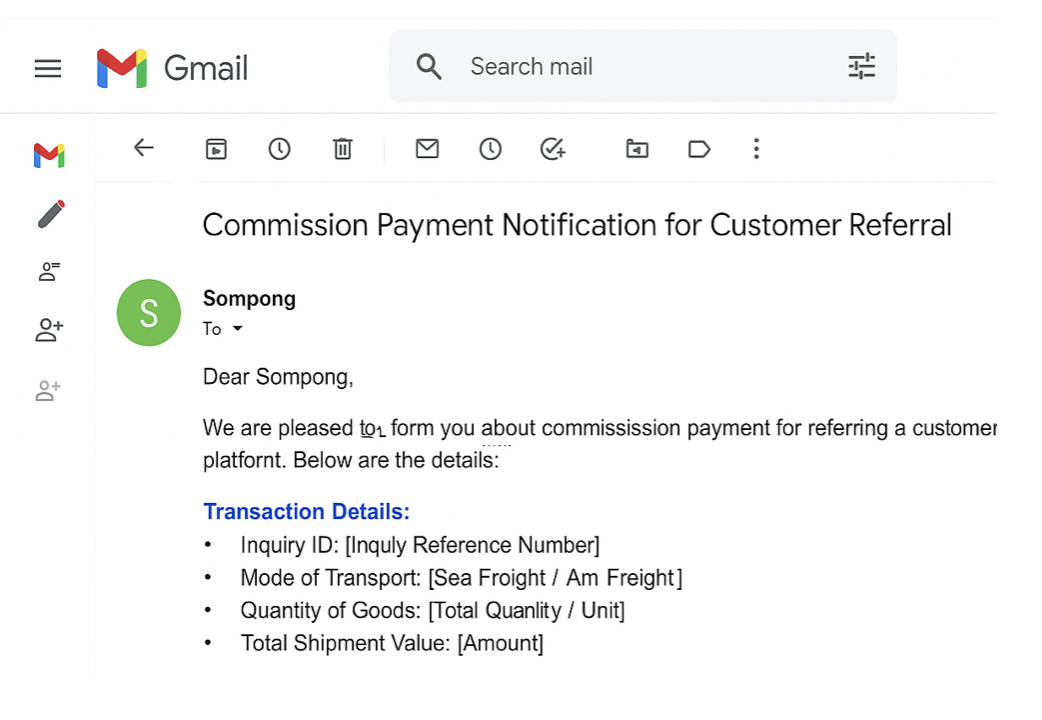
- After the forwarder pays the service fee, the system calculates commission for the referrer, showing shipment details such as request ID, cargo volume, total shipment value.
- The system deducts withholding tax and other applicable taxes before transferring the net amount to the referrer, in accordance with the platform’s terms and conditions.